Showing posts with label how to. Show all posts
   

Hi Guys want to add Music Player on your blog then come here.Putting music on Blog is not something very commendable, but there are models that players may be worth by being discreet, easy to customize and will not begin playing automatically.SCM Music Player is a great model that can be incorporated both in Blogger, Tumblr or WordPress.org, running audio from any tab, including links to YouTube videos, creating playlists customized and unique to your blog.

Add SCM Music Player Code Follow These Steps:-

  • Edit Playlist


  • Add some song URL and press sort playlist button

Configure Settings


  • Select Done to proceed.
  • Copy the code from the box.

Now After Copying Code Add SCM Music Player Code To Blogger Blog

  • Go to Blogger Dashboard > Layout > Add HTML/Javascript.
  • Now Paste SCM Music Player Code.
  • Save it.
Your Are Done Now Enjoy!!!! See The Change Don't Forget to Drop Your Comment
Read More
Now You can easily export all of your posts and comments into a single, Atom-formatted XML file for easy backup.Accidently your blog may get deleted and it cannot be undone. Or there could be lot of unpredictable reasons on the web that cause your blog get disappeared. We can't predict what threats there could be and what could be happened in next moment. So rather than finding solutions after a situation, prevention would be even more better.

Export Your Blog

All your blog content and corresponding Blogger comment form comments will be saved or exported here.

  • Go to Blogger Dashboard.
  • Click on your Blog Title.
  • Navigate to Settings.
  • Jump to Other tab below.
  • Click on Export blog link under the Blog tools heading.
  • Now click on Download Blog button in the pop up box. It will download your blog content and related comments for you stored in a XML file (.xml). Keep it in a safe place.
  • Close the pop up.
Import Your Blog

Here you can easily import all your saved content to your Blogger blog.
  • Go to Blogger Dashboard.
  • Click on your Blog Title.
  • Navigate to Settings.
  • Jump to Other tab below.
  • Click on Export blog link under the Blog tools heading.
  • Click on Choose File button on the pop up and click open after selecting your previously saved/exported blog content XML file (.xml).
  • Fill out the word verification beneath and check Automatically publish all imported posts option if you want to publish your imported posts automatically, right after importing them. Else after importing, your posts may remain unpublished until you navigate to your Blogger dashboard and publish each of them manually.
  • Now click on Import Blog button to import your blog content with corresponding post comments.

Note: If you importing content to a existing blog, then each of your imported posts will sorted by date and added to the particular places of your blog.

Now Close the pop up.
Read More
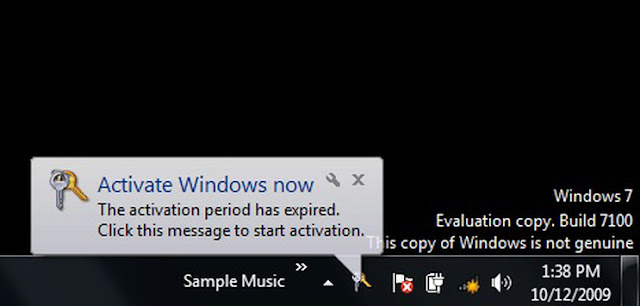
Windows 7 Genuine Notification

Many Guys Suffering from this problem . It will always show you a warning that you may be a victim of software counterfeiting and that your Windows is not genuine. It will show up on your logon screen and make you wait for some seconds.So today i post the software with tutorial to help you remove this type of notifications completely fom your windows 7.

First of all Download the RemoveWat Software from the below link:-

  
If Link is not working then click here

Now Follow These Simple Steps:-
  • After Downloading RemoveWat extract it to your computer and open removewat.exe
  • Now click on removewat.exe and you wait just few minutes . because after sometime it's totally done. 
  • Then Restart Your system .You can see that windows 7 Genuine Notification is removed.
  • You are Done!! 
Hope this tut helpful for you.Don't forget to drop your comment!
Read More


Nowadays i am hearing many of Facebook account has been hacked. Facebook accounts are hacked to gain personal information.You need to be very careful in protecting your Facebook account. So please follow some simple steps to protect your Facebook Account.

Use strong passwords
Always make a strong password with special characters and alpha numeric keys. This will be useful in protecting your account. Don't simply use a word or name or Date of Birth.The shorter your password, the easier it is to hack, especially if it’s a common word or name. A good starting point is six characters, though 8, 10 or 12 are even better. If you have trouble remembering, do something about that, else consider using an unusual phrase or combo of words that only you or a few people might know, then substitute some of the letters with digits and/or punctuation. It is advisable to use both capital and small letter in your password. Have a unique password. It should not be used by you for others such as e-mail or other social networking sites.


Don't make Everyone as your friend
Avoid the person who doesn’t even have a profile pic, let alone any friends in common with you.Don't accept all the friend request you get. This is very important one. Accept only the person you know. Because most of the people are accepting all the request they get.

Change your password Frequently
By Changing your password in monthly or even weekly, not yearly. Facebook’s “Forgot password?” option is one way, or you can go to your account’s settings.

Don’t click on links that are not Trustworthy
While you log in to your facebook account don't click the links that you see in facebook. Because all the links are not trustworthy. Similarly always log in to your Facebook from the Facebook home page. Don't click on the links that you get to your mail and log in.

Don’t believe all emails
As you know that honest web services will never ask you to do certain things in an email. For example, Facebook will NEVER send you an email asking you to change your password or enter personal details. If they need you to do that, they will tell you where in your account settings you can go to do that.On a similar note, protect your email account that you registered for Facebook with, else someone can succeed in resetting your Facebook password.

Use Private Browsing
By the use private browsing. When you log out then just delete the cookies. Don't click Remember Me.
Read More
Nowadays many people seen a great offer on any modem and buy it.After expire of their offer they worried about tariff plan.So they trying to unlock their HSDPA modem,because some modem s works for just one network.Now todays i am going to post a trick Unlock Huawei and ZTE HSDPA Modems free after unlock you can use any networks.It takes just few seconds to unlock your modem.

1. Unlock Huawei HSDPA modems


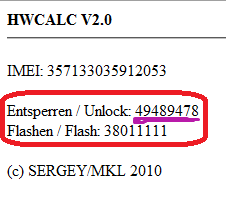
When we put some other network sim card it will ask some code.So im going to generate that code.It is easy.first of all you have to find your IMEI of mode.it will mention on your modem or modem box its 15 digit.now follow this.

Paste this below address to your address bar.
http://bb5.at/huawei.php?imei= your Huawei modem IMEI number 

Now replace your Huawei modem IMEI number with your IMEI number like below
http://bb5.at/huawei.php?imei=357133035912053 

Press Enter key,after you will see like this


Now enter this unlock code when it ask the code. you are done.

2 . Unlock ZTE HSDPA modems


Some ZTE modems not asking unlock code.so no where to input our code.
so you can't do it like above method.you have to use some software for this.

Download software click here

First of all, if you use some memory card, remove it. remove sim card
and put sim card what you want to unlock.(it will display invalid sim)

Plug your modem in to your computer,sometime connection manager will display,close it.

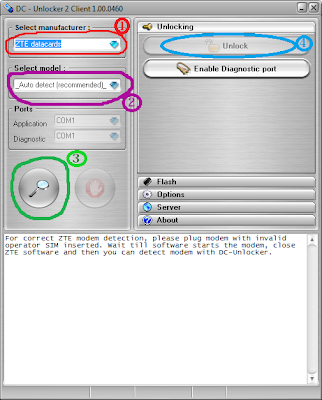
Unzip what you download and open dccrap.exe 


First select the manufacture as ZTE datacards ( No: 1)

Select the model as Auto detect (recommended) (No : 2 ) If you know the model and
which com port you use.u can do that way also

Click find button (No: 3) . after your modem model will display below box

After detect modem click unlock button (No: 4 )

cheers you are done.After few seconds modem will unlock restart your computer and use
your modem.This connection manager also working for this.
But if you want to use ZTE connection manager click below link to download.

click here to download.
Read More
      
Many have you heard Google is replacing Android Market with Google Play.Also Redirect Android Market Website To Google Play. This Rebranding Automatically Updates Icons, Name Market To Play Shop And Url Of Market.Android.Com To Play.Google.Com.Actually, Google Play is a combination of Android Market, Google Music and the Google eBookstore.“If your device can be updated, the Android Market app will automatically update to the Google Play Store app,”
Google says in a help center article. “Once you have it, the Google Play Store app automatically updates itself when new versions become available. This is a silent update, which means you will not see a notification and will not be prompted to update.”Those who would line to upgrade this now, they can easily do it as the Google Play Store APK has already made it online.

Follow these steps to upgrade it manually on your Android device:
  • Open Market And Update All Apps.
  • Change Settings To Auto-Update Apps.
  • Close Android Market App And Start Again.
  • Then Above Image Message Show Click Continue Button To Upgrade Android Market To Google Play.
Now You Have new Google Play App Installed In Your Android Phone. Download And Install Free Apps From Play Shop.
Read More
         
Nowdays Everyone using Facebook Timeline.What is Timeline,timeline is a great way of displaying your old photos, memorable posts and apps with your friends and family. Its display of profile display image at the top with huge listing of old facebook updates, photos, videos and more.
Read More
Nowadays Facebook became more popular in field of Social Media.From now, above 750 million Facebook users will be able to enjoy the video calling along with group chatting and more features right from the Facebook. Together with Skype, Facebook has launched its first ever Video Calling option on there website.Skype, the leading video calling service in the world.It requires a simple setup to use within from Facebook. Here is how to setup Facebook video calling to use it right from your Facebook profile.No need to install any software or application to make this function work.
Read More
Nowadays Facebook Page is a good way to promote blog and increase readers.A Fan Box or Like Box allows your Blog visitors to see how many users already like your Facebook Fan Page and Facebook like box is widely used in Blog and website.Its allows to like your Facebook Fan Page with one click, without leaving your blog.
                                           

Add the fanbox to blogger, follow these steps: 

                                             
  • Now Choose the appropriate choices and hit the "Get Code" button.
  • Copy any of the code either iframe or XFBML.
       
                                         
  •  Go to your Blogger Dashboard > Design/Layout > Page Element > Add a Gadget > HTML/JavaScript


  • Paste the code and hit save.
  • And we are done visit your blog to see it on your blogger sidebar. Enjoy!!
        or you can use this following code (Alternative Method)

<iframe src="//www.facebook.com/plugins/likebox.php?href=http://www.facebook.com/Your page link Here&amp;width=292&amp;height=258&amp;colorscheme=light&amp;show_faces=true&amp;border_color&amp;stream=false&amp;header=false&amp;" style="border:none; overflow:hidden; width:292px; height:258px;" ></iframe> 

  • Copy this code and Login To Blogger Account..
  • Click Blog Title → Layout → Add A Gadget
  • Select HTML / Javascript → Paste The Following Code In Content Box.
Note:-
  • To Change Facebook Page URL http://www.facebook.com/Your page link Here
  • Change Width 292 And Height 258 According To Your Template.
  • Now save you are done!! 
Read More
Previous PostOlder Posts Home